
OBS Screen Recorder: Free Product Tutorials With OBS Studio
OBS Studio is a free, open-source screen recorder suitable for creating multi-source product tutorials without watermarks. It requires manual setup and separate editing for polished results, unlike automated tools.
Quick answer: Use OBS screen recorder features in OBS Studio when you want free local recording with control over your screen, webcam and microphone. Choose it for a repeatable recording setup; allow a separate editing pass for cuts, captions and polished zooms. A first-time user should prove the capture and audio work in a short private sample before recording a full tutorial.
ToolPeach earns a commission from qualifying purchases made through links marked “Paid link”, at no extra cost to you. As an Amazon Associate, ToolPeach earns from qualifying purchases.
On this page
Check the stated plan, date and evidence before applying a recommendation to your own workflow.
Quick answer: Use OBS screen recorder features in OBS Studio when you want free local recording with control over your screen, webcam and microphone. Choose it for a repeatable recording setup; allow a separate editing pass for cuts, captions and polished zooms. A first-time user should prove the capture and audio work in a short private sample before recording a full tutorial.

Original editorial workflow diagram; not a software screenshot or a performance benchmark.
Evidence and evaluation scope
This is a documentation-based guide, not an experimental speed, image-quality or CPU comparison. We checked the OBS Project's help portal, quick-start instructions and recording-output guide on 28 October 2026. Our judgment concerns the workflow: OBS is useful when control over sources matters more than getting a finished edit immediately. Hardware, operating-system permissions and the complexity of your scene can change the result.

Real software screenshot: Rambospirit / OBS contributors, Wikimedia Commons, published under GPL v2 or later. This historical interface example shows OBS 30.1.2 in 2025, not a claim about today's release. Resized rendition. OBS source code.
The screenshot identifies the workspace rather than demonstrating a successful recording: its preview is blank. Do not mistake an open application window for proof that the correct screen or microphone is being captured.
OBS Screen Recorder Workflow: Sources, Sound and Output
Build a reusable scene
Download from the official OBS website. The download page lists current operating-system requirements. Run Tools → Auto-Configuration Wizard as an initial setup aid, then select the sources your tutorial needs.
The official quick-start guide distinguishes Display Capture and Window Capture on Windows/Linux, macOS Screen Capture on macOS, and Video Capture Device for a webcam or capture card. Source names and permissions differ by platform. For a product walkthrough, our suggested starting layout is one application window, your microphone, and an optional small webcam overlay. Add complexity only after this works.
An editorial privacy check belongs before recording: close private tabs, notifications and password managers, and use demonstration data. Capturing one window can simplify the composition, but still review the actual output for menus, dialogs and unexpected private content.
Check the sound in the saved file
Watch the Audio Mixer while speaking; use headphones for the acceptance review below. A moving meter alone does not establish that the right voice, desktop sound or audio track reached the file. The acceptance review below covers missing narration, doubled audio and distracting sound. Start with device selection and microphone placement before stacking filters.
Separate recording from streaming
Use Start Recording for a local tutorial. Live streaming is a separate task; a local recording does not need to be broadcast publicly. OBS can support recording and streaming, but neither is enabled simply by arranging a preview. Studio Mode helps prepare and transition scenes; it is not a substitute for starting the intended output.
Plans, limits and total cost
The OBS Project states that OBS is free under GPLv2, supports commercial use, and adds no watermark. The core application's license is not a paid subscription. This does not make a whole production free: storage, a microphone, an editor or optional third-party services may cost money.
| Decision | What to check |
|---|---|
| Application cost | Get OBS from the official project; do not pay an unrelated site to unlock the core recorder. |
| Operating system | Read the current download requirements rather than assuming an old screenshot's version is current. |
| Recording location | Choose a folder with enough free space and confirm that a sample file appears there. |
| Quality settings | Begin with the wizard or recording presets, then assess the saved output on your own machine. |
| Editing | Plan a separate editor if you need timeline cuts, captions or animated emphasis. |
We do not prescribe a universal bitrate or CPU preset. A streaming recommendation is not automatically the best local-recording setting. The official recording guide discusses format and encoder choices, recommends MKV for resilience to interrupted recordings, and explains remuxing for an editing workflow. This is the file handoff covered by the acceptance checklist below.
Who should choose it and who should skip it
Choose OBS if you will reuse scenes, want to combine screen and webcam sources, and can spend time checking the setup. It makes particular sense when the same product demonstration layout will be recorded repeatedly.
Consider another workflow if the goal is a single quick screen clip or a finished presentation with very little editing. Our decision rule is to compare the time spent on the complete job—preparation, recording, corrections and export—not merely the time until the recorder opens. That is an editorial framework, not a measured speed ranking.
Pros and cons
Advantages: free core software, flexible source composition, visible audio controls, and an established official documentation library.
Trade-offs: setup needs attention; permissions and devices must be checked; polished post-production needs another tool. We have not measured OBS against other recorders and make no claim that it is faster, lighter or more resource-hungry on your hardware.
Alternatives for the same task
Compare categories before brands. A built-in screen capture tool may cover a one-off clip. A recorder with automated presentation effects may fit narrated software demonstrations. A full video editor may fit a project that needs many cuts and captions. Platform support, license and export restrictions determine whether the alternative can complete your job.
Optional paid editing stage: PowerDirector 2027 Ultimate
If your OBS recording needs a separate Windows timeline editor, PowerDirector 2027 Ultimate is one option to evaluate. It is a different application, not a paid edition of OBS and not required to make an OBS recording. Our PowerDirector license guide explains the edition and AI-credit limits.
CyberLink's official version comparison distinguishes Ultimate from Ultra, Ultimate Suite and 365. Compare the exact edition's editing and export capabilities with your sample recording. A paid license does not guarantee unlimited cloud AI use; consult the current credit terms before budgeting those features.
Check PowerDirector 2027 Ultimate — Windows PC online code on Amazon (Paid link) (Paid link)
Before ordering, confirm Windows compatibility, the selected 2027 Ultimate edition, digital-code region eligibility and the retailer's activation and return conditions. This purchase is for the optional editing stage, not an OBS unlock. We have not tested this editor with our own OBS footage: first use a representative sample to assess import, sound, captions and your required export.
FAQ
How to record a product tutorial with webcam?
Create a scene with the appropriate screen/window source, add a Video Capture Device, and arrange the layers in the preview. Keep the webcam away from controls the viewer must follow.
Which OBS Studio audio mixer settings matter?
There is no single setting suitable for every microphone and room. Select the intended device, set a usable level and listen to the exported test. Include the beginning and end in the acceptance review, and repeat it after changing filters.
Is OBS a finished video editor?
For this tutorial workflow, treat OBS as the capture and scene-composition stage. Plan editing separately and test the handoff file. Check whether the proposed editor supports the cuts, captions and exports your project needs.
What should pass before a full recording?
Our suggested acceptance check: the saved file opens; interface text is readable at delivery size; narration is present and understandable; private information is absent; and your editor accepts the format. Keep the sample until the full project is safely delivered.
Sources
- CyberLink PowerDirector 2027 official edition comparison
- CyberLink AI credits and metered features
- OBS Project help and licensing FAQ
- OBS Project quick-start guide
- OBS Project recording-output guide
- OBS Studio overview and workspace
- Official OBS download and current requirements
Documentation was checked for capabilities and workflow. We did not run performance benchmarks or an experimental software comparison. The historical screenshot and original diagram are identified separately above.
More from ToolPeach
ABBYY FineReader PDF: Standard, Corporate or Mac?
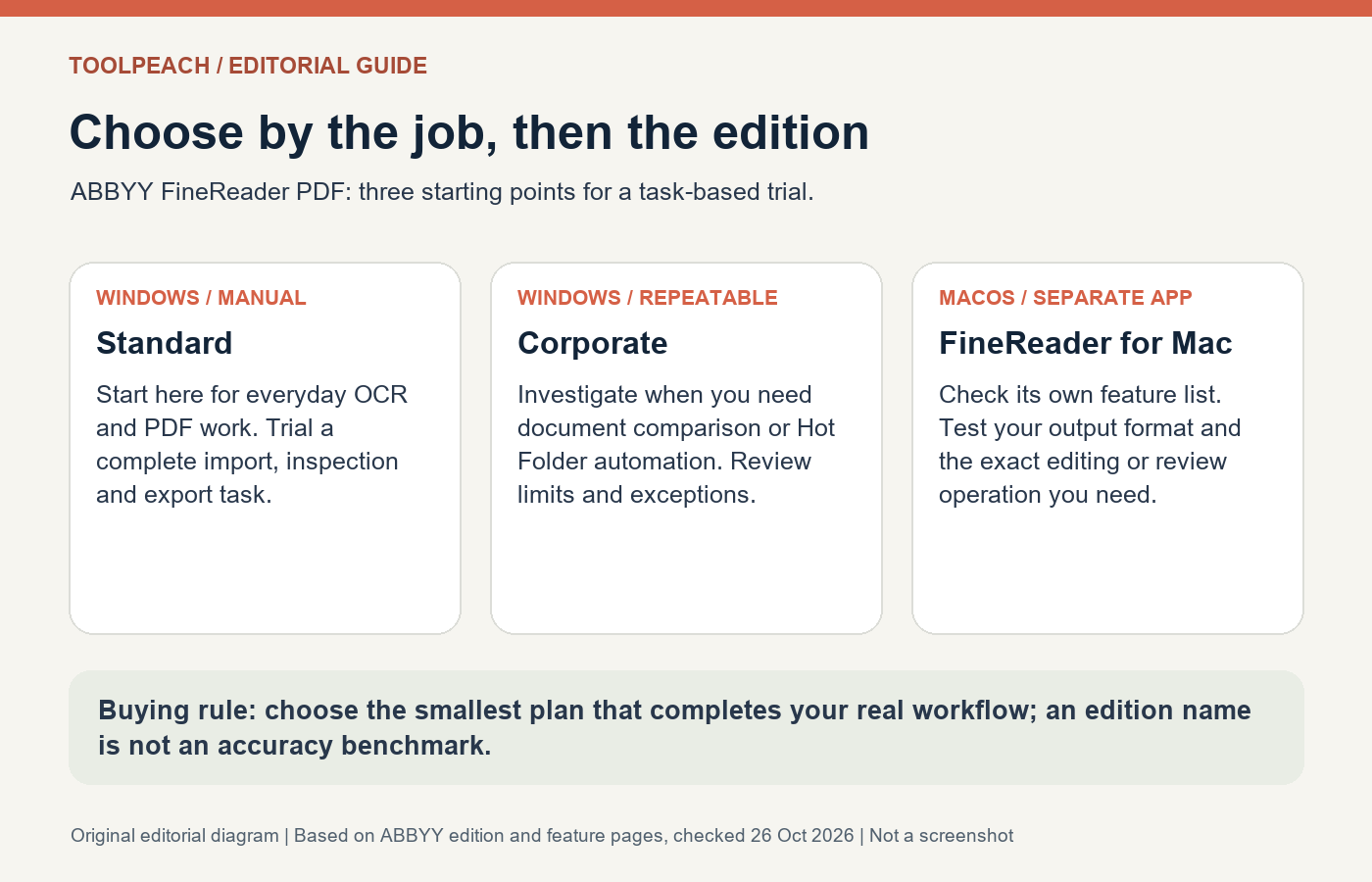
A research-based guide to choosing FineReader Standard, Corporate or Mac, with an Acrobat Pro comparison and practical checks for usable OCR output.
PowerDirector 2027 Ultimate: What the One-Time License and 500 AI Credits Include
PowerDirector 2027 Ultimate is a Windows video editor sold as a PC online code, and the Amazon listing states a one-time purchase with 500 credits for the first year. CyberLink's credits FAQ confirms that allotment is redeemable once after purchase, and the listing warns that generative and agentic AI features run on credits and may cost extra. This guide separates the permanent editor license from the credit-metered AI layer and marks every unstated value as unknown.
CorelDRAW 2026: One-Time License, AI Credits and Design Workflow
A research-based guide to CorelDRAW 2026: one-time versus subscription rights, finite AI credits, file handoff and the exact US Amazon download edition.